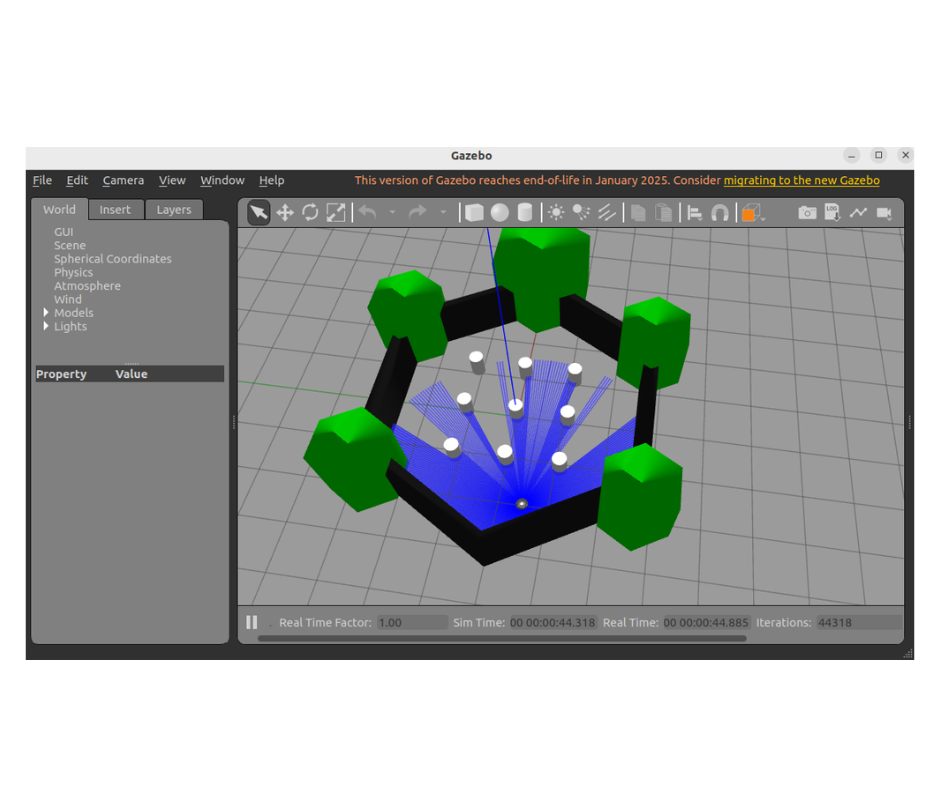
15. การใช้งาน Simulation ใน Gazebo
ในบทนี้จะอธิบายเกี่ยวกับการ จำลองการทำงานของหุ่นยนต์ TurtleBot3 Simulation บน Gazebo ซึ่งเป็นเครื่องมือสำคัญใน ROS 2 สำหรับการทดสอบและพัฒนาหุ่นยนต์โดยไม่จำเป็นต้องมีฮาร์ดแวร์จริง (https://emanual.robotis.com/docs/en/platform/turtlebot3/simulation/)
15.1. ติดตั้งแพ็กเกจที่จำเป็น
สามารถข้ามไปทำข้อ 11.3 เปิดใช้งาน Simulation ใน Gazebo ได้เลย เนื่องจาก Ubuntu ที่ให้นั้นได้ติดตั้งแพ็กเกจเป็นที่เรียบร้อยแล้ว
ติดตั้ง Gazebo
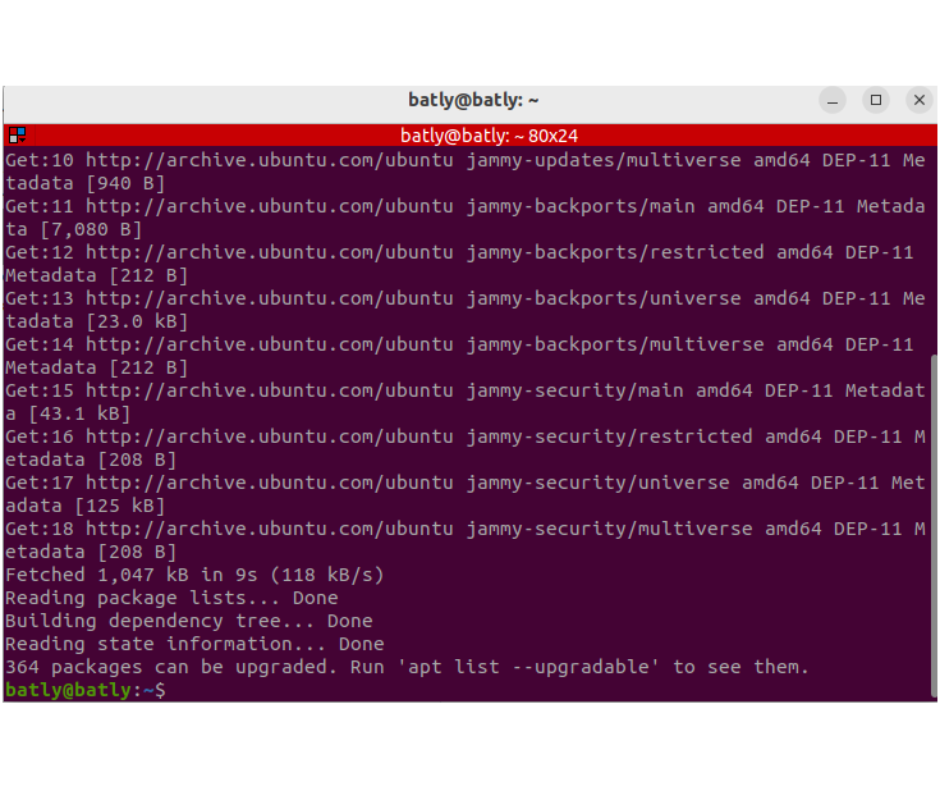
sudo apt update
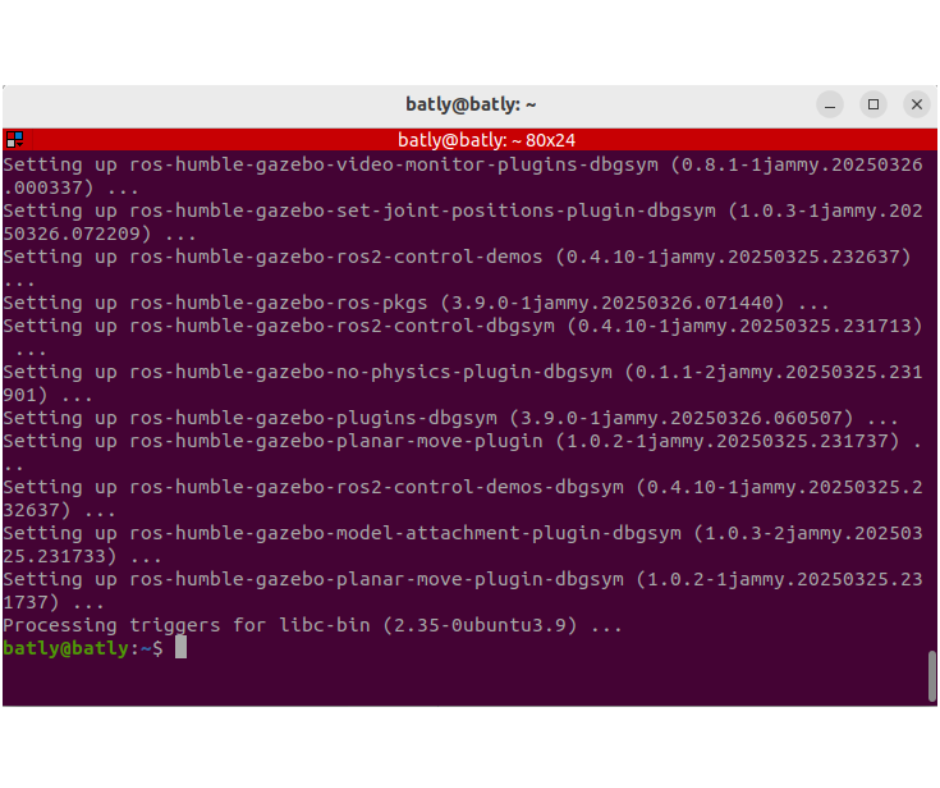
sudo apt install ros-humble-gazebo-* -y
ติดตั้ง Cartographer (ใช้สำหรับ SLAM)
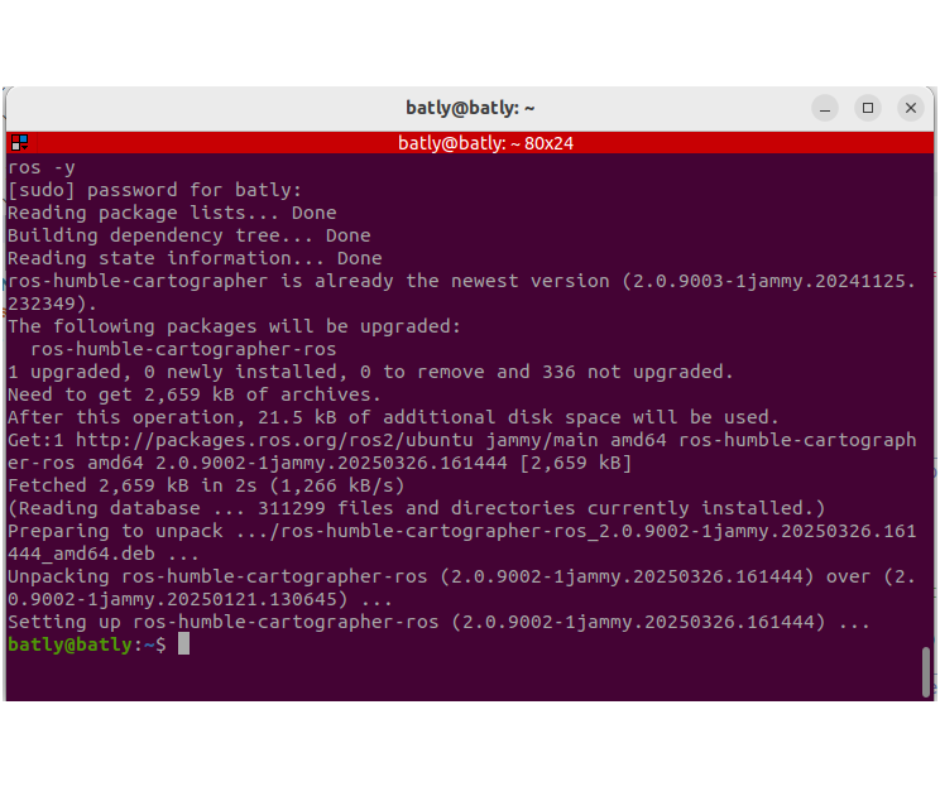
sudo apt install ros-humble-cartographer ros-humble-cartographer-ros -y
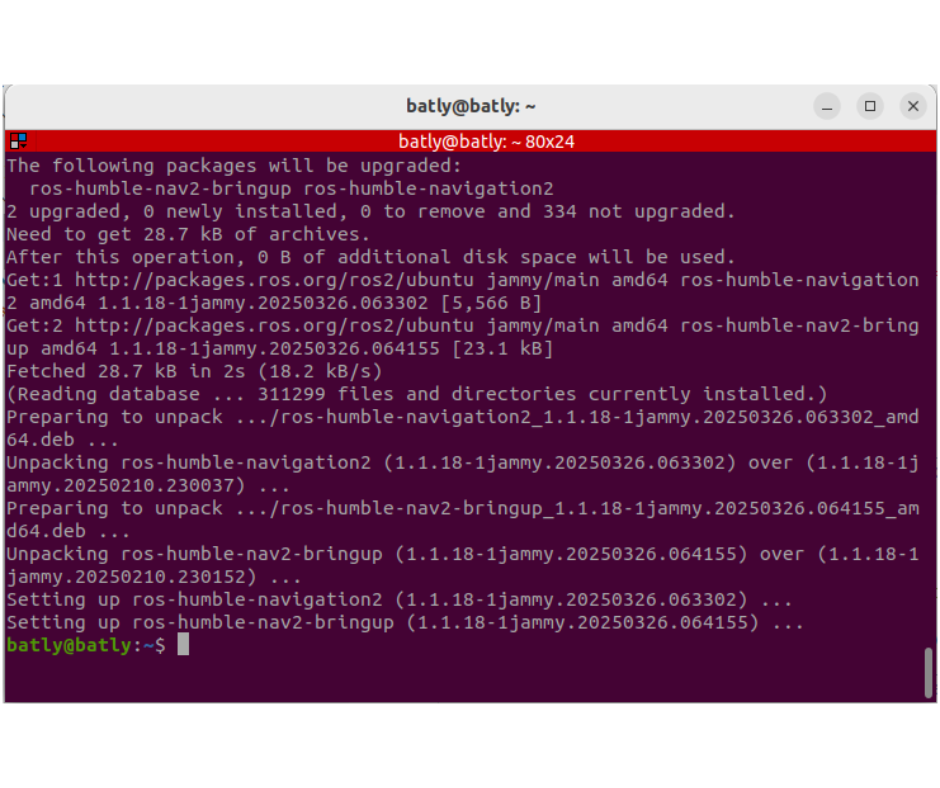
ติดตั้ง Navigation2 (ใช้สำหรับนำทาง)
sudo apt install ros-humble-navigation2 ros-humble-nav2-bringup -y
15.2. ติดตั้งแพ็กเกจ TurtleBot3
สามารถข้ามไปทำข้อ 11.3 เปิดใช้งาน Simulation ใน Gazebo ได้เลย เนื่องจาก Ubuntu ที่ให้นั้นได้ติดตั้งแพ็กเกจเป็นที่เรียบร้อยแล้ว
เปิด Terminal แล้วติดตั้งแพ็กเกจที่จำเป็นของ TurtleBot3
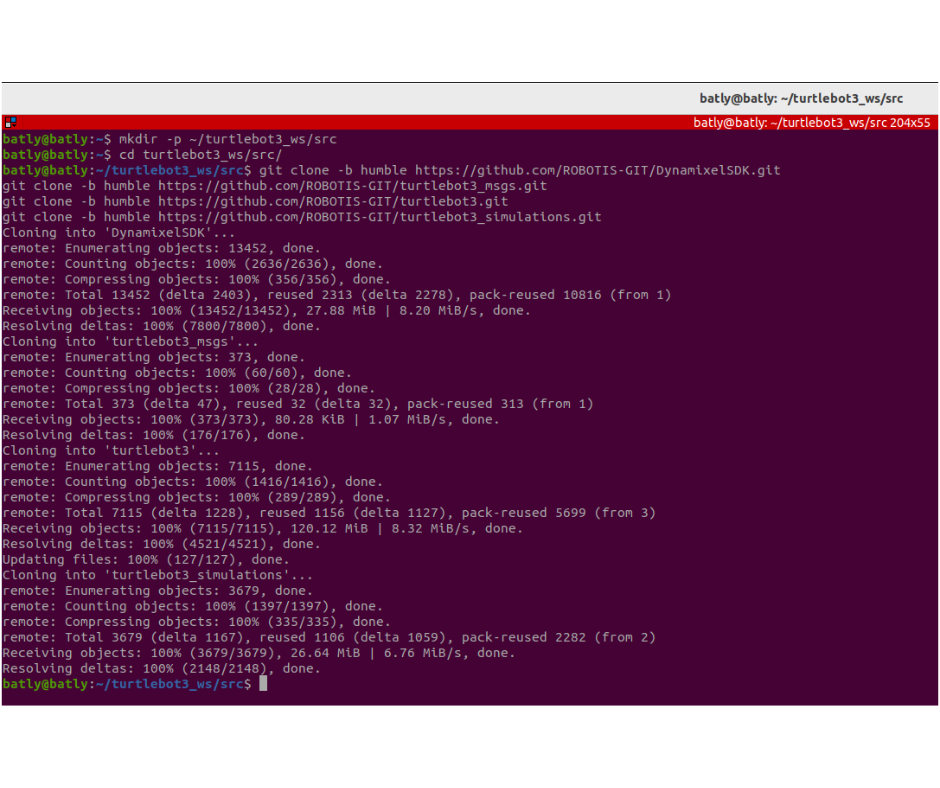
mkdir -p ~/turtlebot3_ws/src
cd ~/turtlebot3_ws/src
git clone -b humble https://github.com/ROBOTIS-GIT/DynamixelSDK.git
git clone -b humble https://github.com/ROBOTIS-GIT/turtlebot3_msgs.git
git clone -b humble https://github.com/ROBOTIS-GIT/turtlebot3.git
git clone -b humble https://github.com/ROBOTIS-GIT/turtlebot3_simulations.git
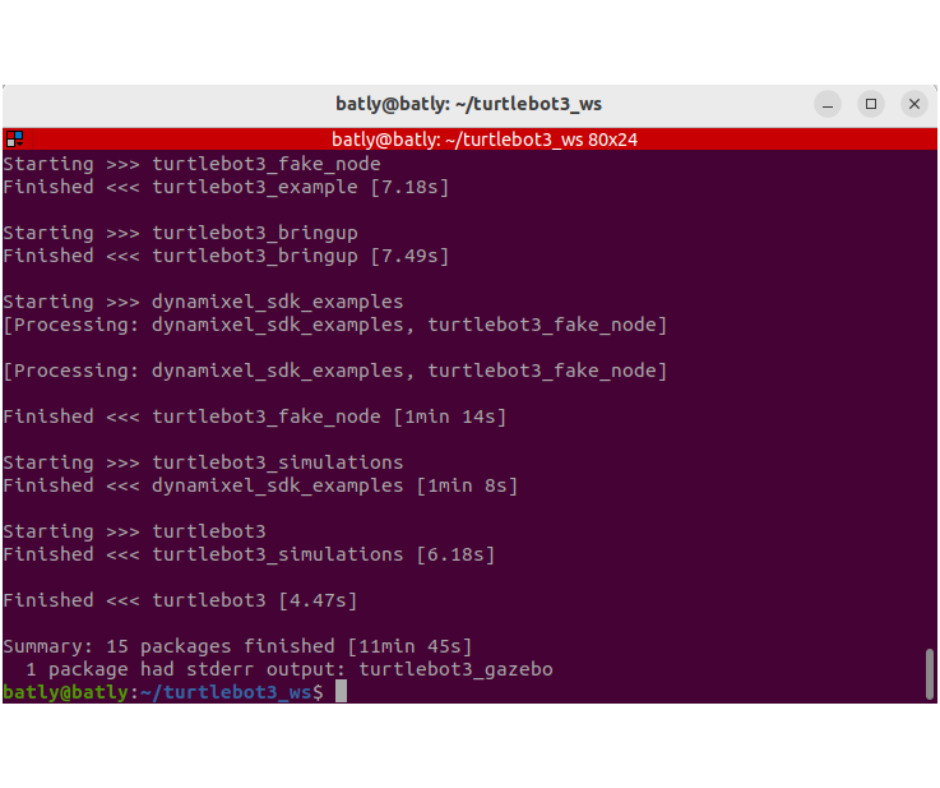
cd ~/turtlebot3_ws && colcon build --symlink-install
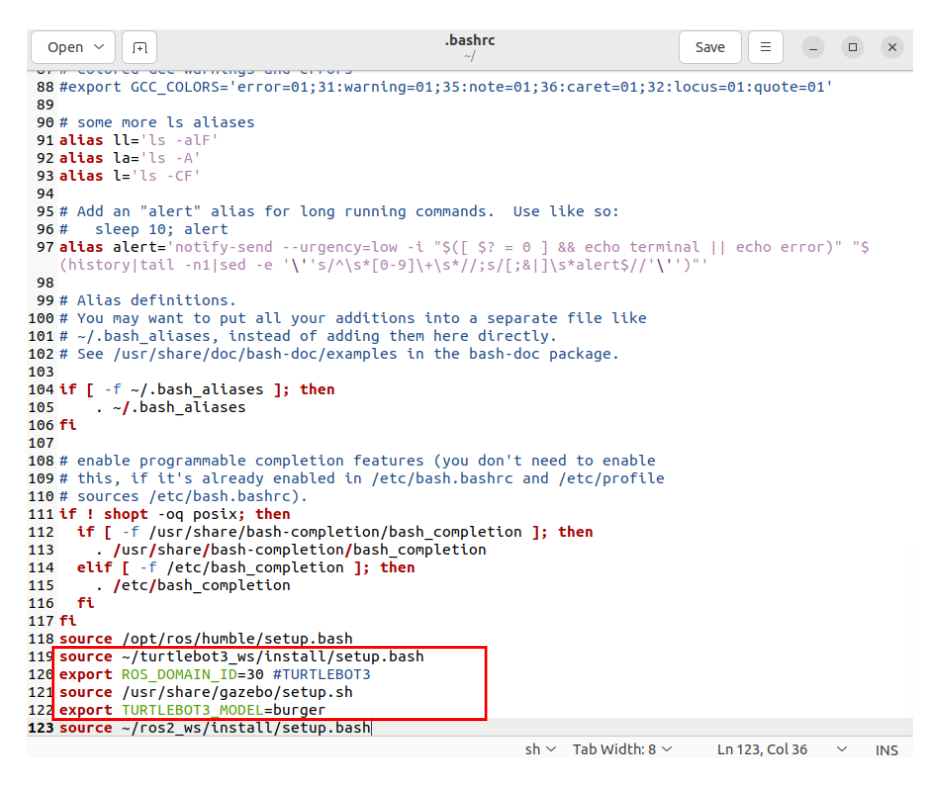
ตั้งค่า Environment สำหรับ TurtleBot3 ในไฟล์ bashrc ด้วยคำสั่ง:
gedit ~/.bashrc
จากนั้นเพิ่มคำสั่งดังนี้ และกด Save:
source ~/turtlebot3_ws/install/setup.bash
echo 'export ROS_DOMAIN_ID=30 #TURTLEBOT3'
echo 'source /usr/share/gazebo/setup.sh'
export TURTLEBOT3_MODEL=burger
15.3. เปิดใช้งาน Simulation ใน Gazebo
เมื่อแพ็กเกจจำเป็นถูกติดตั้งเรียบร้อยแล้ว สามารถเลือก Environment (โลกจำลอง) โดยยกมาให้ทดสอบ 2 แบบ ดังนี้
Empty World
ros2 launch turtlebot3_gazebo empty_world.launch.py
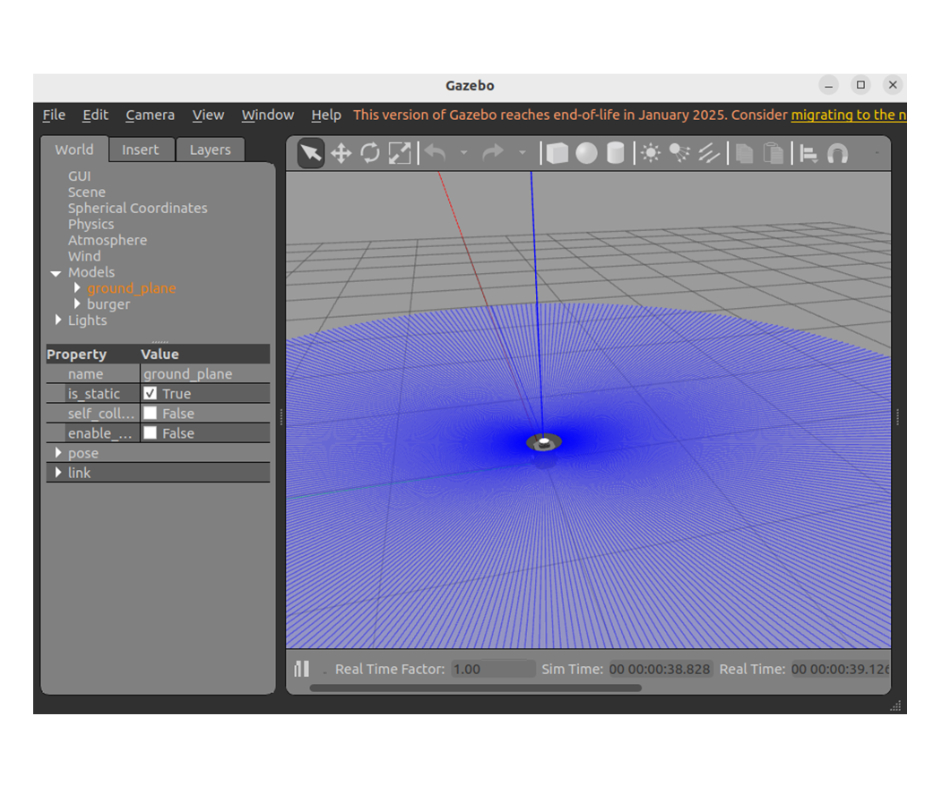
TurtleBot3 World
ros2 launch turtlebot3_gazebo turtlebot3_world.launch.py